Customizing Drop Down Lists & Boxes


Create New Edit Delete
Folder Item Item Item
LIST MANAGEMENT
List Management is a module in which you can create project specific drop down boxes for you modules. ( CSI Codes, Document Disciplines, Document Status, Meeting Minute Categories, Punch List Cost, Shippers, States, and UCI Codes).
Each of these selections comes with a default set of information. You have the ability to revise the existing information, delete the information and insert all new, or use the default information as is.
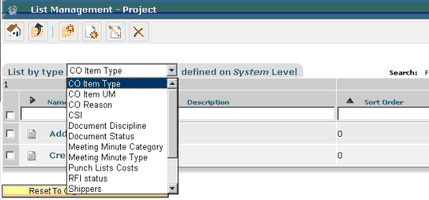
To customize the List Management
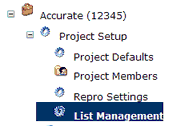
| • | Click On Your Organization Name |
| • | Click on Project Name |
| • | Click on Project Setup |
| • | Click on List Management |
| • | From the drop down box, click on the item you want to revise |
You have two options for creating your list management.
Option #1 is the customize the existing list and
Option #2 is the create a new list completely.
Option #1
| • | Option 1 is to customize the existing list. |
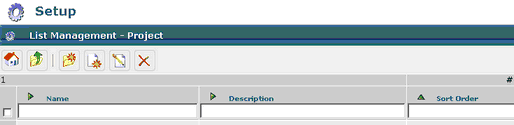
| • | Click on the first topic in the name column – a default list of topics will appear |
| • | Select those topics that you DO NOT require and click on the delete icon  |
| • | You have the option to edit the existing topics – click on the selection box to the left of the topic to be edited; click the edit icon  |
| • | The Edit List Item screen will appear – edit appropriately and Click Save |
| • | Continue this process with each topic on the list |
Option #2
| • | Option 2 is to create an entire new list topics |
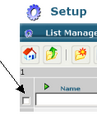
| • | Click on the selection box at the top of the screen |
OR

| • | Click on the Check All button |
| • | Click the delete icon  |
| • | To Create A New Topic: |
| • | At, the List Management screen, click on Create Group icon  |
| • | Insert the name, description and sort order |
| • | Click on the Save button |
| • | Continue with process until all topics been inserted |
| • | To Create A CSI Code in List Management, you will need to take one more step in the process |
| • | Click on the Division number |
| • | At the CSI code screen, click on the Create A New List Item icon  |
| • | Insert name, description and sort order |
| • | Click on the Save button |
| • | Continue with process until all CSI codes are entered |
To reset the default divisions and codes to their original state,
