|
To Create Punch List Items


Create Create Edit Delete Close Import Print Print Report
Folder Item Item Item Item From CSV + Attach
| • | If you have created a folder, click on the folder name |
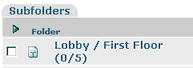
| • | Click on Create A New Punch List Item icon  |
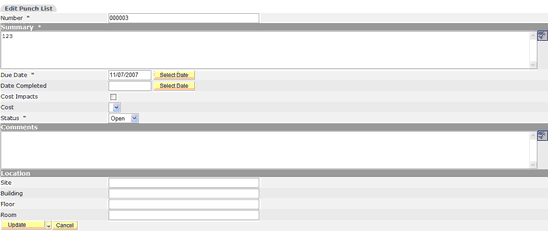
| • | Number – defaults to next sequential number; can be modified |
| • | Date Completed – insert date punch list item was completed |
| • | Cost Impact – select if applicable |
| • | Cost – ability to create what the cost impact will be. Go the List Management and access Punch List Costs to create. |
| • | Status – defaults to Open |
| • | Comments – insert if applicable |
| • | Location – insert locations if applicable |
| • | Click Create New Punch List – will bring you back to main screen |
| • | Click Save & Copy – creates copy, revise as necessary |
Add Responsible Parties
| • | Click on Add Responsible Party icon  |
| • | Select from project member list |
| • | Click on the selection button; this will bring up the People Picker screen |
| • | The search will default to the project member list |
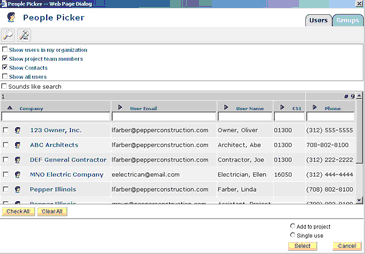
| • | Select by clicking on the selection box to the left of the name; then click the Select button |
To Add CCs
| • | Click on the Add CC Recipients icon  |
| • | Select from the Project Member list as shown above |
|