

Create New New Edit Delete Folder Report
Folder Agenda Meeting Item Item Access
If you are going to create an agenda, click 
If you are going to create meeting minutes, click 
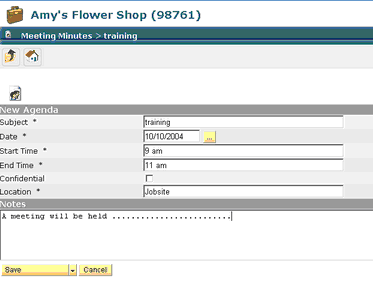
To Create An Agenda
| • | Click on Create An Agenda icon |
| • | Subject – defaults to folder information |
| • | Date – defaults to current date |
| • | Start Time – insert time |
| • | End Time – insert time |
| • | Confidential – select if required |
| • | Location – insert location of meeting |
| • | Notes – insert notes if required |
| • | Click the Save button; this will take you back to the main folder level |

Click on the folder in the agenda box to continue with the process.
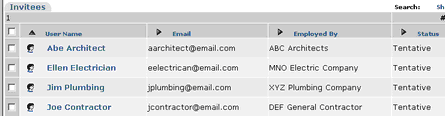
Invite Attendees
| • | Click on Add Invitee's icon  |
| • | Select invitee's from team member list |
| • | To invite someone not shown on the member list, proceed with search process. |
Create Agenda Items
| • | Click on Add Agenda Items icon |
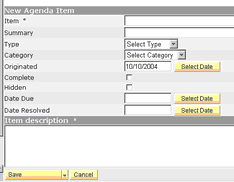
| • | Item – enter item number |
| • | Item Description – enter agenda item |
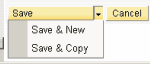
| • | Click Save, Save & Copy or Save & New |
| • | Continue adding items |
Note: The remainder of categories are not required fields, but can be used if you desire. In order to make entry more efficient, upon item creation, use the arrow next to Save / Update for a drop down choice to Save and New or Save and Copy. This will either take you to the next items entry screen with all fields filled out from your previous form or take you right to the next item for new entry.
Sending Invitations for an Agenda
| • | Click on Send Invitations button |
| • | Agenda will be sent electronically to all invitee's |
| • | Invitee's can respond electronically |
| • | Their response (if electronic) will be posted in the agenda status column |
You have two options to create future agendas.
| ▪ | Create a new agenda by using the Create New Agenda icon |
| ▪ | Do a Save & Copy of the current agenda and make revisions |
CREATE MEETING MINUTES
Click on the appropriate meeting folder

Create Minutes
| • | Click on Create New Meeting icon  |
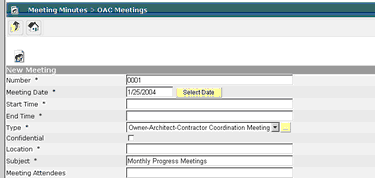
| • | Number – defaults to next sequential number; can be modified |
| • | Meeting Date – defaults to current; can be modified |
| • | Start Time – insert time meeting started |
| • | End Time – insert time meeting ended |
| • | Type – defaults from folder information; can be modified |
| • | Confidential – if applicable |
| • | Location – enter location of meeting |
| • | Subject – defaults from folder information |
| • | Meeting Attendees – will be assigned in the next screen |
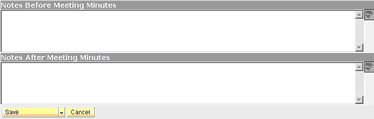
| • | Notes Before the Meeting – the following is programmed into the system: |
A meeting was held to discuss the issues identified below. The following people were in attendance..
| • | Notes After the Meeting – the following is programmed into the system |
The above is the writers understanding of the issues discussed. If there are any revisions and/or corrections, please notify the writer within five (5) days.
| • | Click the Save Button |
| • |